The LUT Generator is a tool intended to help create and edit monodimensional (1D) color look-up tables (LUTs). It is designed to be functionally similar to the Color Tables tool in McIDAS.
As with all tools in SatDump, more than one LUT Generator can be opened and operated at once.
General Overview
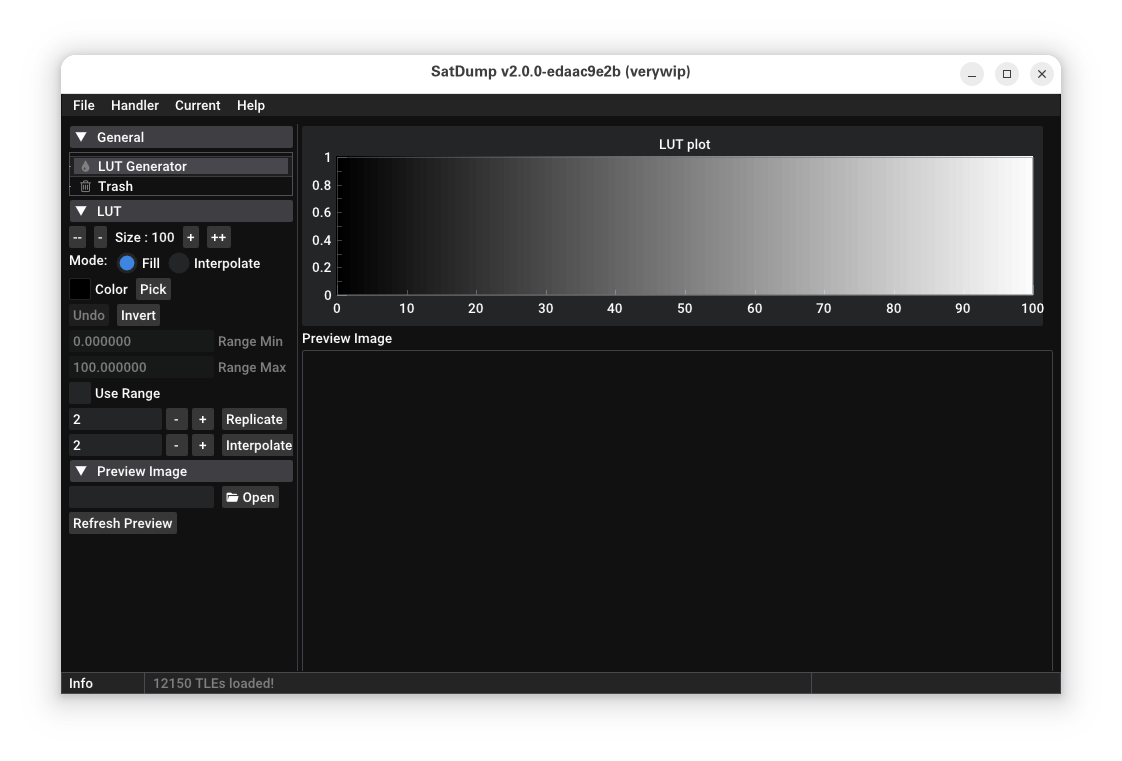
Overview screen
The LUT Generator is composed of four main parts:
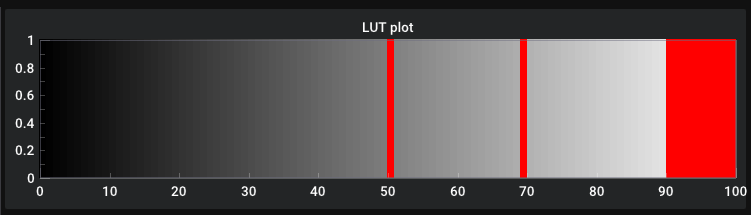
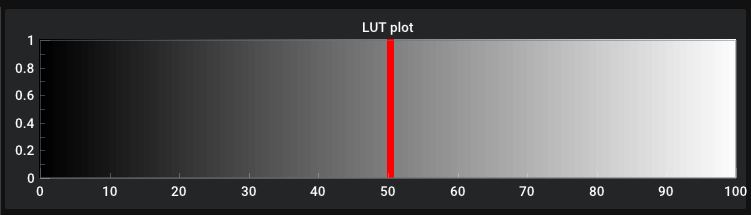
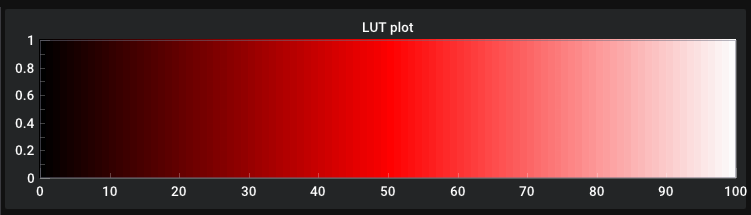
- LUT plot: this part represents the currently edited LUT and can be interacted with using the mouse.
- LUT controls: this part controls the LUT size, the editing mode, the color, ranges and other features related to the LUT.
- Preview image controls: allows loading an image to test the LUT being edited in real time.
- Preview image: shows the previously loaded image with the current LUT applied to it.
The Current menu in the top menu bar serves to save and load a LUT. Only the PNG format is supported.
LUT controls
- Color: controls the current color. By clicking on the box a new color can be chosen or inputted using RGBA, HSVA or HTML-style notations.
- Pick: leverages grabc to pick colors from any location on the computer screen, such as a Web image or another program.
- Warning
- This function is not currently supported on Windows and MacOS platforms.
- Undo: reverts the last change.
- Invert: inverts the LUT
- Use Range, Range Min and Range Max: enables the range feature to more easily compare the LUT to an actual physical quantity such as temperature, and provides features to control such range. The scale on the LUT plot is automatically updated to match the chosen range.
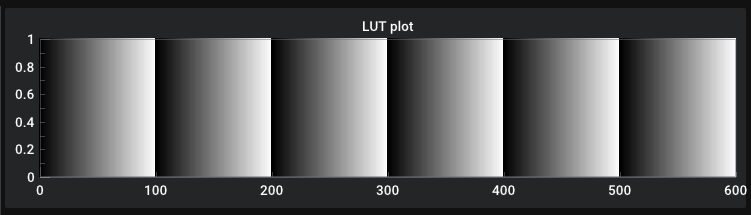
- Replicate: replicates the current LUT by the chosen number of times. In this example, the default LUT was replicated six times.
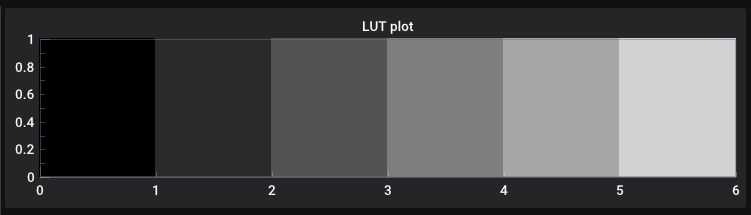
- Interpolate: interpolates the current LUT to the specified number of cells. In this example, the default LUT was interpolated to six cells.
Preview Image controls
- Open: loads a specified image. All image types supported by SatDump are allowed.
- Refresh Preview: refreshes the preview.
Similarly to the other image viewers in SatDump, the preview image can be dragged with the left mouse button, can be zoomed in or out with the mouse scrollwheel and the zoom can be set to fit the preview size by double-clicking the right mouse button.
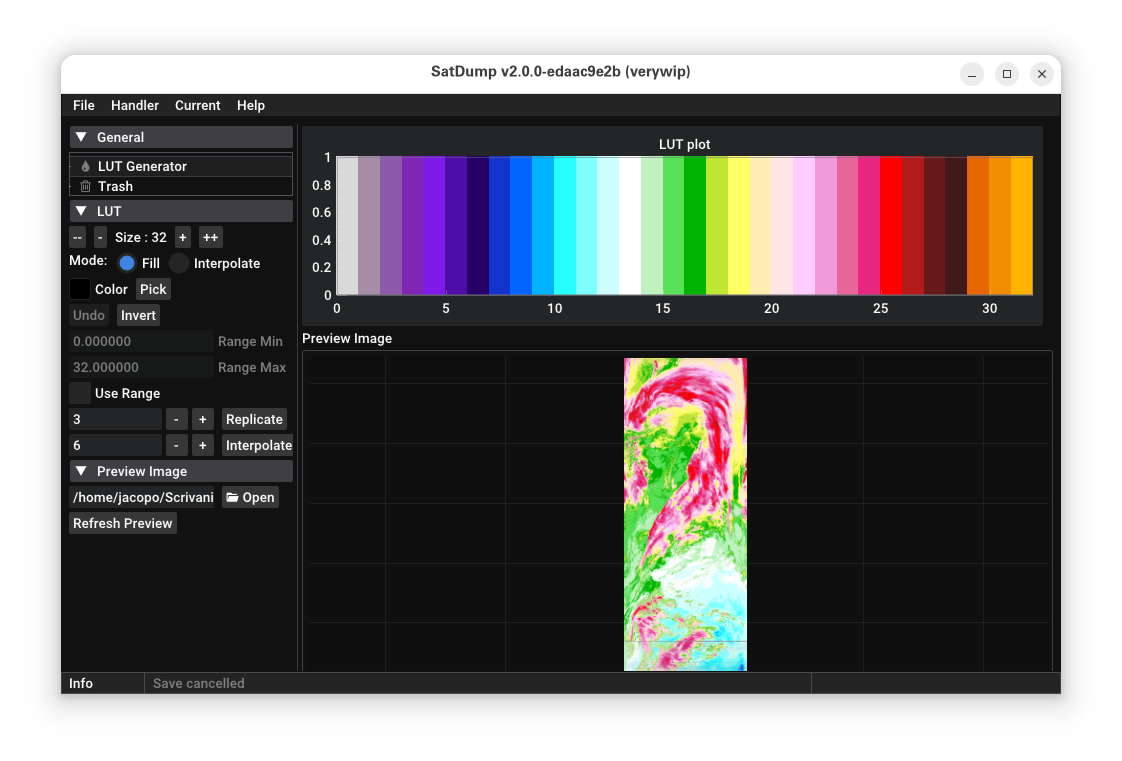
A 32 cell LUT applied to an AVHRR channel 4 image
Current menu
- Save LUT: saves the current LUT to a PNG file.
- Load LUT: replaces the current LUT with one from a PNG file.
Tips
- It is possible to save a satellite channel image as calibrated and set the Range Min and Range Max to equal the ranges chosen in the calibration process.
- It is also possible to easily replicate LUTs found in papers or used by meteorological agencies by using the Pick function and the Range function. Normally only a limited number of colors need to be picked and most can be obtained with the Interpolate editing mode.
 1.14.0